
Android users enjoy a lot of flexibility when it comes to installing and update apps. Normally, apps update automatically through the Google Play Store. However, there are times when users prefer updating apps manually using APK files.
Updating apps through APK files is useful when a new update is not yet available in your region, when the Play Store update is delayed, or when you want to install a specific version of an app. Many Android users also use this method when their device does not support the Play Store.
What Is an APK Update?
An APK update means installing a newer version of an app manually using its APK file.
When you update an app using an APK file:
- Your existing app remains installed
- Your data usually stays safe
- Only the app version changes
This process works just like a normal update from the Play Store, but you install the update file manually.
Why People Update Apps Using APK Files
There are several reasons why Android users update apps using APK files.
Get Updates Earlier
Sometimes new app updates appear online before they reach the Play Store in certain countries. APK files allow users to install the update earlier.
Play Store Not Available
Some Android devices do not support the Play Store. In such cases, APK files are the only way to install or update apps.
Fix App Problems
If an app stops working properly, installing a fresh APK update can fix bugs or performance issues.
Manual Control Over Updates
Some users prefer controlling when and how their apps update instead of automatic updates.
Things to Check Before Update Apps Using APK
Before installing an APK update, it is important to check a few things.
Check the App Version
Make sure the APK file version is newer than the installed version. Otherwise, the update will not work.
Check the Developer Name
Always verify that the developer name matches the official app developer.
Backup Important Data
Although updates normally keep app data safe, creating a backup is always a good idea.
Use Trusted Sources
Only download APK file from reliable websites to avoid malware.
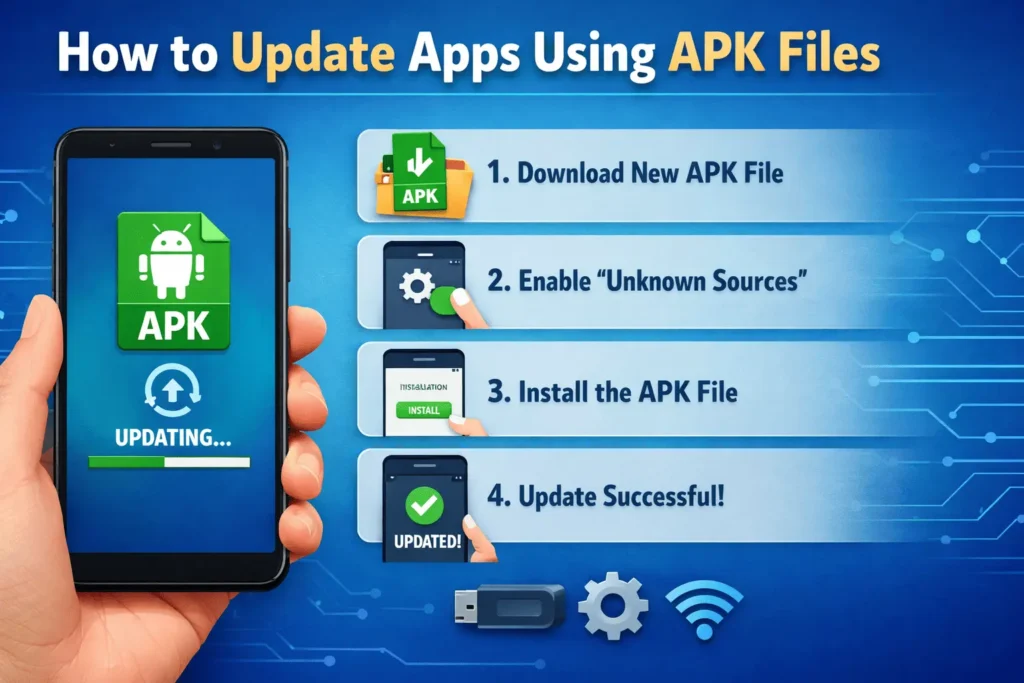
How to Update Apps Using APK Files
Update apps using APK file is very simple if you follow these steps.
Download the Latest APK File
First, download the newest version of the app in APK format.
Make sure:
- The version is newer than your current app
- The file is downloaded from a trusted website
- The file size matches the official app information
After downloading, the file will usually appear in your Downloads folder.
Enable Install from Unknown Sources
Android phones block manual installations by default for security.
To allow APK installation:
- Open Settings
- Go to Security or Privacy
- Find Install Unknown Apps
- Allow your browser or file manager to install apps
This permission allows your phone to install APK file.
Locate the APK File
- Now open your File Manager and go to the Downloads folder.
- Find the APK file you just downloaded.
- The file name will usually look like:
- AppName-VersionNumber.apk
- For example:
- AppName-2.5.apk
Install the APK Update
- Tap the APK file and press Install.
- Your phone will detect the existing app and replace it with the updated version.
- This process usually takes only a few seconds.
- Once completed, your app will be updated successfully.
Open the Updated App
After installation finishes:
- Tap Open
- Launch the app normally
Your updated app should now run with the latest features and improvements.
Most of the time, your previous data such as login details and settings will remain unchanged.
Important Tips for Safe APK Updates
Update apps with APK files is safe if you follow a few important tips.
Always Use Trusted Websites
Unsafe websites may provide modified or infected APK files.
Check App Permissions
If the update apps suddenly asks for unusual permissions, be careful.
Scan APK Files
Use a mobile antivirus app to scan APK files before installing them.
Avoid Cracked Apps
Modified or cracked APK files can contain harmful software.
Keep Your Android System Updated
System updates help protect your phone from security threats.
Advantages of Update Apps Using APK Files
Manual APK updates offer several advantages for Android users.
Faster Access to Updates
You can install new versions before they reach your region.
More Control
You decide when and which version to install.
Useful for Older Devices
Older phones that cannot access the Play Store can still receive app updates.
Fix Bugs Quickly
If a new update fixes bugs, installing the APK can solve problems immediately.
Common Problems When Updating APK Files
Sometimes users face issues when updating apps using APK files.
App Not Installing
This usually happens when the APK version is older than the installed app.
Installation Blocked
This happens when unknown sources are not enabled.
App Crashes After Update
The APK file may be incompatible with your device or downloaded from an unsafe source.
To fix these problems, always download the correct version and verify the file before installing.
Final Thoughts
Update apps using APK files is a useful method for Android users who want more control over their apps. It allows users to install the latest features, fix bugs, and access updates that may not yet be available through the Play Store.
The process is simple: download the latest APK file, enable installation permissions, and install the update. However, safety should always be the top priority. Always download APK files from trusted sources and check app details before installing them.
When done carefully, updating apps with APK files can be a safe and convenient way to keep your Android apps up to date.
FAQs
Can I update any app using an APK file?
Yes, most Android apps can be updated using APK files as long as the APK version is newer than the installed version.
Will update apps with APK delete my data?
In most cases, no. Your app data such as settings and login information usually remains safe.
Why does my APK update fail to install?
The update may fail if the APK version is older, incompatible with your device, or downloaded incorrectly.
Is updating apps using APK files safe?
It can be safe if the APK file comes from a trusted source and is scanned for malware.
Do I need to uninstall the old app before installing the APK update?
No, you usually do not need to uninstall the app. Installing the APK will automatically update the existing app.